INTRODUCTION
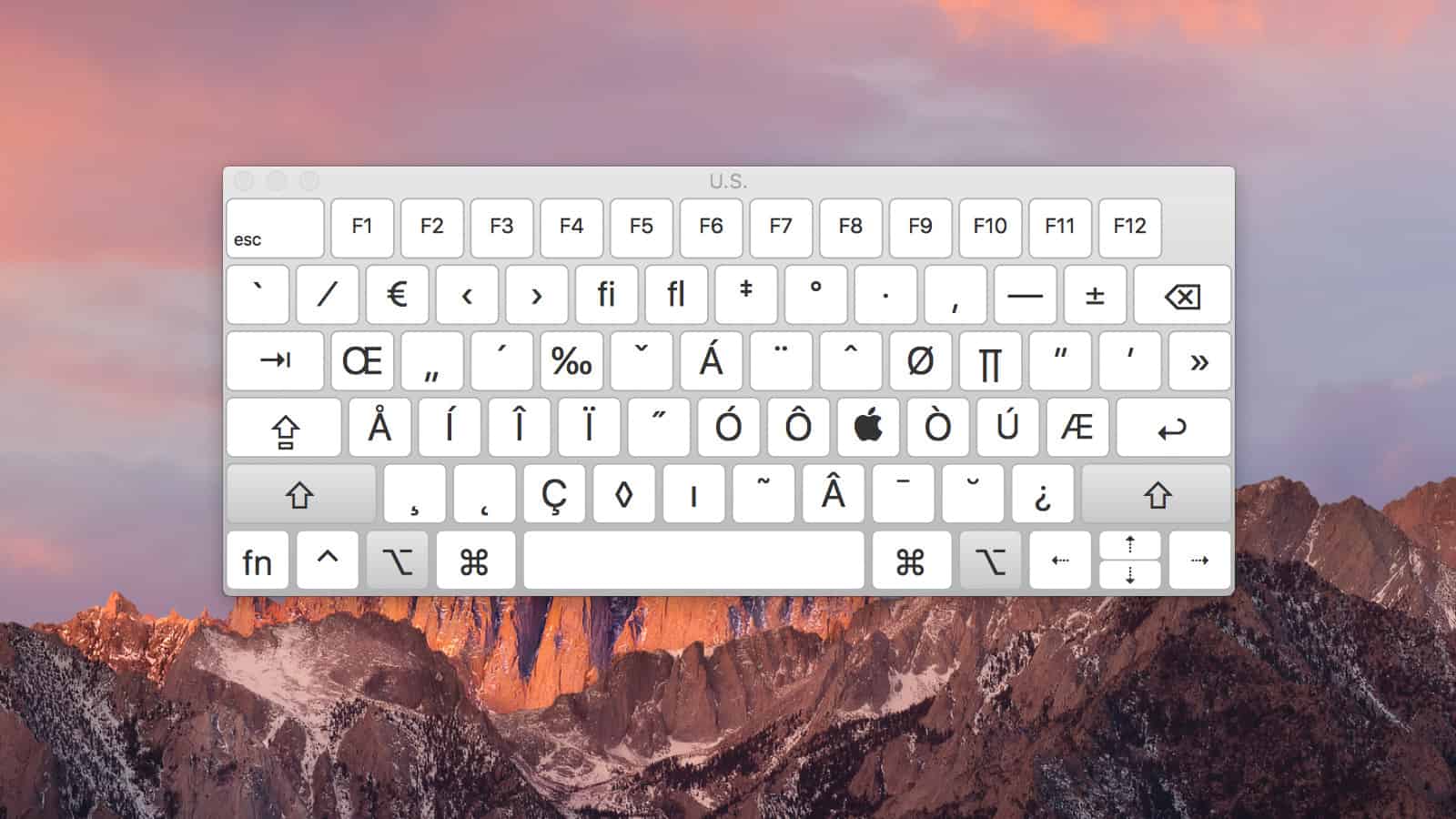
If you have SMARTboards and you’re a teacher who loves to always be directly plugged into those SMARTboards, this video is a game changer. Consider the scenario: you’re connected, you have something on your SMARTboard, and you select something that requires you to type. Maybe you’re searching the web, but there’s no keyboard because you’re directly hooked up to your Mac, so you always have to come around to your desk and type on your keyboard. But no more! Now on the Mac computer, you can enable a keyboard in your menu bar, giving you full access to a full-blown keyboard.
ACCESSING THE KEYBOARD FEATURE
So here’s the question: How do I get this keyboard? First, access the Apple icon, scroll down, and select System Settings. In the search bar, type keyboard, and then select the option Show Keyboard and Emoji Viewers in Menu Bar. A popup will appear with the settings.
ENABLING THE INPUT MENU
The first option shown is Show Input Menu in Menu Bar. Turning it off will make the icon disappear. Turning it on will make the icon appear in your menu bar. After enabling it, select Done and exit out of System Settings.
USING THE NEW KEYBOARD
Now go to your SMARTboard and try it out. Select the icon, choose Show Keyboard, and you’ll have a full on-screen keyboard. This means you no longer need to walk back to your desk to type. You can type directly at your SMARTboard.
CUSTOMIZATION OPTIONS
There are additional features if you’d like to customize the keyboard. You can choose between light or dark styles and explore various options. I encourage you to try those settings on your own. This is a game changer for SMARTboard users. Thank you for watching.